
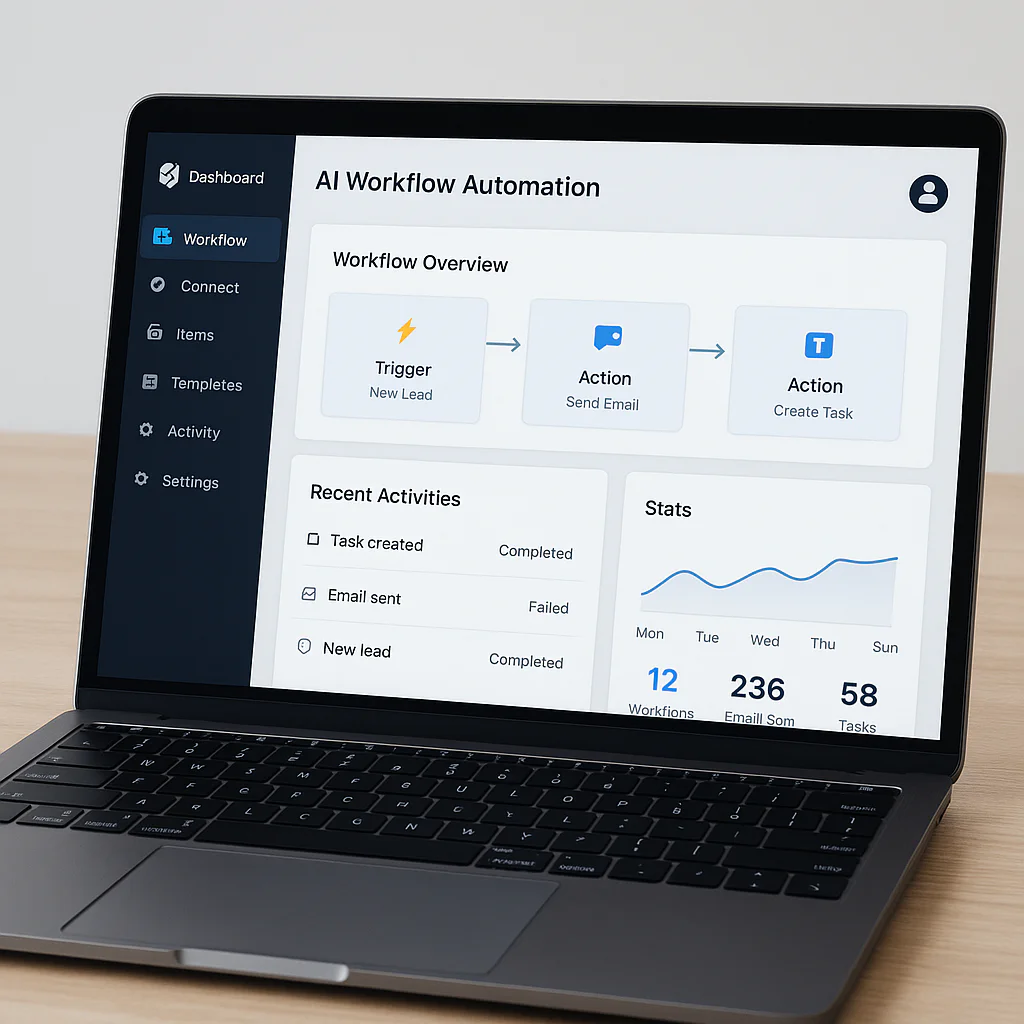
No code AI workflow automation apps can connect your business tools, handle repetitive tasks, and use AI to make sense of emails, forms, and documents—without requiring you to write code. For most teams, Zapier is a friendly place to start, Make offers more visual control over complex workflows, and n8n suits teams that want deeper customization or self-hosting.
The trick is choosing a tool that fits the work, not chasing the flashiest AI demo. We’ve seen a simple “summarize this request, then send it to the right person” workflow save more hassle than a sprawling automation that tries to run the whole department. Start small, test with real-world examples, and keep a human in the loop when a mistake could matter.
Key Takeaways
- Choose the app around your workflow: Zapier is approachable, Make is flexible for visual multi-step processes, and n8n offers more control for technical teams.
- Use AI where it helps: AI is useful for interpreting unstructured text and documents; predictable decisions are usually better handled with ordinary rules.
- Test before trusting: Check unusual inputs, failed connections, duplicate records, and AI outputs before turning on an automation.
- Keep people involved in high-impact steps: Review sensitive messages, financial actions, and consequential decisions before they go live.
- Check integrations and usage limits: Confirm that a tool supports the exact app actions and workflow volume you need; product plans and features change.
Table of Contents
- ⚡ Quick Tips and Facts
- 🧭 No-Code AI Workflow Automation: The Basics
- What Is a No-Code AI Automation App?
- How AI Workflow Automation Works
- No-Code vs. Low-Code vs. Traditional Automation
- 📚 The Evolution of No-Code AI Automation Tools
- 🔍 What to Look for in a No-Code AI Workflow Builder
- AI Models, Integrations, and Automation Triggers
- Ease of Use, Reliability, and Human Review
- Privacy, Security, and Compliance
- Pricing Models and Usage Limits
- 🏆 Best No-Code AI Workflow Automation Apps to Try in 2026
- 1. Zapier: Best for Connecting Everyday Apps
- 2. Make: Best for Visual, Multi-Step Workflows
- 3. n8n: Best for Flexible, Self-Hosted Automation
- 4. Relay.app: Best for Human-in-the-Loop AI Workflows
- 5. Gumloop: Best for AI-First Workflow Building
- 6. Microsoft Power Automate: Best for Microsoft 365 Teams
- 7. Pipedream: Best for AI Workflows with Room to Grow
- 8. Workato: Best for Enterprise Automation
- 9. Barden: Best for Browser-Based Task Automation
- 10. Apify: Best for Web Data Collection and Actors
- 11. Clay: Best for AI-Powered Data Enrichment
- 12. Airtable Automations: Best for Database-Centered Workflows
- 13. Google AI Studio: Best for Prototyping AI-Powered Workflows
- 14. Voiceflow: Best for AI Agents and Conversational Workflows
- 15. Lindy: Best for AI Assistants That Handle Routine Work
- ⚖️ No-Code AI Automation App Comparison
- Which Tools Offer the Best Integrations?
- Best Apps for AI Agents, Browser Automation, and Web Scraping
- Best Free and Open-Source Automation Options
- 🎯 Which No-Code AI Automation App Should You Choose?
- Best Tools for Small Businesses and Solo Operators
- Best Tools for Marketing, Sales, and Lead Generation
- Best Tools for Operations, Support, and Internal Teams
- Best Tools for Developers and Technical Teams
- 🛠️ How to Build Your First No-Code AI Workflow
- Choose a Repetitive Task Worth Automating
- Map the Trigger, AI Step, and Actions
- Test, Review, and Improve Your Workflow
- 💡 Practical No-Code AI Automation Use Cases
- Email Triage and Customer Support
- Lead Research and CRM Updates
- Content Repurposing and Publishing
- Document Processing and Data Extraction
- Browser Automation and Web Research
- 🤖 AI Agents vs. Workflow Automation: What’s the Difference?
- 🧩 Integrations, APIs, and App Compatibility
- 🔒 AI Automation Risks, Privacy, and Reliability
- ✅ Can You Automate Workflows Without Coding?
- 💸 Common Costs and Ways to Keep Automation Affordable
- 🚫 Common No-Code AI Automation Mistakes
- 🔮 The Future of No-Code AI Workflow Automation
- 🏁 Conclusion
- 🔗 Recommended Links
- ❓ FAQ
- What is the best no-code AI workflow automation app?
- Can I use AI automation without coding experience?
- Can no-code automation apps use ChatGPT or Claude?
- Are no-code AI workflow apps safe for business data?
- What is the difference between Zapier, Make, and n8n?
- Can AI automation apps control a web browser?
- 📖 Reference Links
⚡ Quick Tips and Facts
No-code AI workflow automation apps connect your business tools, pass information between them, and use AI for tasks such as classifying messages, summarizing documents, extracting data, or drafting responses—all through visual builders rather than hand-written code.
Our App 9™ developers recommend starting with the process, not the platform. Pick one repetitive task, map its trigger and next steps, then choose an app that supports the integrations and human review you need. If you’re building a complete AI-powered app rather than automating an existing process, our guide to no-code AI app development covers that different job.
| Quick fact | What it means for you |
|---|---|
| An automation usually has a trigger and one or more actions | Example: a new form submission triggers an AI summary and a CRM update |
| AI is most useful for unstructured information | It can classify incoming text or extract details; ordinary rules can handle predictable routing |
| A visual builder does not guarantee a no-maintenance workflow | Connections, permissions, model behavior, and changed app interfaces still need attention |
| Human approval can be built into many workflows | Use it before sending sensitive messages, issuing refunds, or changing important records |
| Tool fit depends on your environment | Zapier, Make, n8n, Power Automate, and AI-focused tools make different trade-offs |
Fast recommendations:
- ✅ Choose Zapier for approachable connections across widely used apps.
- ✅ Choose Make when you want a visual way to build branching, multi-step scenarios.
- ✅ Consider n8n when self-hosting or customization matters and your team can manage the extra technical work.
- ✅ Consider Relay.app when people need to review or approve steps in an AI workflow.
- ❌ Don’t let an AI model make high-impact decisions without testing, logging, and appropriate human oversight. The NIST AI Risk Management Framework is a useful reference for thinking about AI risks.
Here’s the question we’ll keep returning to: How do you tell a genuinely useful AI workflow from a flashy demo? The answer starts with understanding what the tools actually automate.
🧭 No-Code AI Workflow Automation: The Basics
What Is a No-Code AI Automation App?
A no-code AI automation app is a visual platform for connecting software and automating tasks, with AI steps available for work that requires interpreting or generating information. Instead of writing a script, you typically arrange triggers, actions, filters, and AI operations in a builder.
A simple example:
- A customer sends a support request through a form.
- The automation sends the message to an AI model.
- The model labels it as billing, technical support, or general feedback.
- The workflow routes it to the right team.
- A staff member checks the suggested reply before it goes out.
That last step is not a sign of failure. It’s often a sign of good design. Automation should remove busywork, not remove judgment where judgment matters.
Traditional app automation can handle predictable logic: “If a new row appears, send a notification.” AI adds flexibility for information that doesn’t arrive in neat, identical formats: “Read this email and identify what the customer needs.” AI outputs can be wrong, so use clear instructions, test examples, and review steps where appropriate.
How AI Workflow Automation Works
Most workflows combine a few familiar building blocks:
| Building block | Purpose | Example |
|---|---|---|
| Trigger | Starts the workflow | A new Gmail message arrives |
| Condition or filter | Decides what happens next | Continue only if the subject contains “invoice” |
| AI step | Interprets, summarizes, or generates content | Extract the invoice number and due date |
| Action | Changes something or sends information | Add a record to Airtable |
| Human review | Pauses for a person to check a result | Approve a draft before it is emailed |
| Log or error path | Helps track success and handle failures | Notify an administrator if a connection breaks |
Behind the friendly drag-and-drop interface, these platforms usually rely on app connectors, APIs, authentication, and data mapping. That’s why a workflow can be “no-code” for its builder and still depend on technical details such as permissions, field formats, and rate limits.
The distinction between AI interpretation and ordinary logic matters. Use a model to understand a free-form message; use a standard filter to route messages based on a fixed label. A deterministic rule is usually easier to test and trust than asking AI to make a decision it doesn’t need to make.
No-Code vs. Low-Code vs. Traditional Automation
| Approach | Typical builder | Strength | Trade-off |
|---|---|---|---|
| No-code | Visual editor, templates, natural-language setup | Fast to learn and easy to change | Advanced edge cases may be difficult |
| Low-code | Visual editor plus scripts or custom expressions | More control over data and logic | Requires some technical fluency |
| Traditional code | Developers write and maintain the integration | Maximum flexibility and control | Requires engineering time and ongoing ownership |
These categories overlap. A no-code platform may let you add an API call, while a developer-focused tool may provide a visual workflow builder. Choose based on the people who will maintain the automation—not just the person who launches it.
For teams exploring the broader app-building side, App 9™ also covers AI app builders and vibe coding. Those tools help create applications; workflow automation tools connect work that already happens across apps.
📚 The Evolution of No-Code AI Automation Tools
Workflow automation began with straightforward “if this happens, then do that” rules. Modern platforms still use that dependable pattern, but can add language models to process text, images, and documents or help users assemble workflows.
The result is a wider range of products:
- Integration platforms, such as Zapier and Make, focus on connecting apps and moving data.
- Open or self-hostable workflow tools, such as n8n, give teams more control over deployment and customization.
- AI-first builders, such as Gumloop, emphasize model steps, AI agents, and prompt-driven flows.
- Enterprise automation platforms, such as Microsoft Power Automate, combine app workflows with governance, identity controls, and robotic process automation.
A Vellum guide to no-code AI workflow tools frames the appeal as taking an “idea → automated workflow.” That’s a helpful ambition, but it shouldn’t be mistaken for “idea → reliable production system with no testing.” The fast first draft is only one part of the job.
You may also see eye-catching market-growth figures repeated across articles. Treat projections as projections, not as proof that a particular platform will save your team time. The most meaningful evidence is your own measured result: fewer manual steps, fewer errors, and clear ownership when something fails.
🔍 What to Look for in a No-Code AI Workflow Builder
The best tool is not necessarily the one with the longest app list or the flashiest AI demo. It’s the one that can reliably handle your process, with a clear path for testing and fixing it.
| What to evaluate | Questions to ask | Why it matters |
|---|---|---|
| Integrations | Does it support your actual apps and required actions? | A connector that can read data but not update it may not solve the job |
| AI capabilities | Can you choose models, inspect outputs, and control prompts? | AI steps need predictable input and output formats |
| Workflow logic | Can it branch, filter, retry, and handle failures? | Real processes rarely move in a perfectly straight line |
| Human review | Can a person approve sensitive actions? | Useful protection against incorrect outputs |
| Observability | Are run histories, errors, and inputs visible? | Troubleshooting is part of running automation |
| Security | Can you manage access and data appropriately? | Workflows may process customer or employee information |
| Scalability | Can the workflow handle growing volume and complexity? | A successful pilot can become critical infrastructure |
| Portability | Can you export or rebuild your workflows elsewhere? | Avoid treating a visual canvas as a substitute for an exit plan |
For more side-by-side product coverage, see App 9™’s comparisons and app builder comparisons categories.
AI Models, Integrations, and Automation Triggers
Check whether the platform supports your required apps and the specific operations you need. “Integrates with Slack” may mean it can send a message, but not necessarily create a canvas, find a thread, or update a specific field.
Before committing, verify:
- Whether your trigger is real-time, scheduled, or polling-based.
- Whether the connector supports the exact action and data fields.
- Which AI providers or models are available.
- How the workflow passes files, long text, and structured data.
- Whether you can validate or transform model output before using it.
- What happens when a model or connected app is unavailable.
Integrations change over time, so check the vendor’s current app directories, Make integrations, and n8n integrations rather than relying on an old comparison chart.
Ease of Use, Reliability, and Human Review
A workflow is easy to build if its logic is clear six weeks later—not just if its first version takes ten minutes.
Look for:
- Readable workflow names and step labels.
- Test or preview runs using sample data.
- Run history that shows where a task failed.
- Retry and error-handling options.
- Clear handoffs to a person for review.
- A way to disable or roll back a workflow safely.
Human review is especially useful for customer-facing messages, financial actions, HR processes, legal documents, or any step that could cause harm if an AI system misreads context. The NIST AI RMF recommends managing risks throughout an AI system’s lifecycle; in everyday workflow design, that means deciding who checks outputs, what gets logged, and how exceptions are handled.
Privacy, Security, and Compliance
A workflow may send data to several services: the automation platform, an AI provider, and the apps it connects. Map those data paths before using real customer or employee information.
Ask vendors and internal stakeholders:
- Where is workflow data processed and stored?
- Is data sent to a third-party model provider?
- Can you limit who can create, view, or run workflows?
- Are logs available, and how long are they retained?
- Can sensitive fields be excluded or masked?
- Which compliance terms and security controls apply to your use case?
Read the vendor’s current security and privacy documentation. Requirements vary by industry, region, and data type, so a feature list alone is not a compliance assessment. For general guidance on personal information, the FTC’s business privacy and security resources are a useful starting point.
Pricing Models and Usage Limits
No two platforms count usage the same way. One may meter tasks, another operations, workflow runs, AI model usage, or a combination. We’re deliberately avoiding specific prices because product plans change; instead, check the vendor’s live plan details and calculate how your workflow would be measured.
Consider:
- Runs or tasks consumed by each automation.
- Whether a multi-step workflow counts as one run or several operations.
- AI model usage and third-party provider charges.
- Limits on active workflows, connected accounts, or execution speed.
- Team permissions, log retention, and support tiers.
- Extra costs for premium connectors or high-volume processing.
App 9™’s guide to app costs can help you compare ongoing software expenses. The surprising budget leak is often not the platform subscription—it’s an inefficient workflow that repeatedly processes the same record.
🏆 Best No-Code AI Workflow Automation Apps to Try in 2026
The tools below solve overlapping but not identical problems. We’re comparing them by practical fit, not pretending they’re interchangeable.
| App | Best suited to | Standout strength | Main trade-off |
|---|---|---|---|
| Zapier | Broad app-to-app automation | Accessible builder and large integration ecosystem | Complex logic may become harder to manage |
| Make | Visual, multi-step scenarios | Flexible branching and data handling | More concepts to learn |
| n8n | Customizable or self-hosted workflows | Deployment control and extensibility | More setup and maintenance |
| Relay.app | Workflows with human review | Approval-oriented AI flows | Check connector and feature fit for your exact process |
| Gumloop | AI-first visual workflows | AI-centered workflow building | Verify governance and integration needs |
| Microsoft Power Automate | Microsoft-heavy organizations | Microsoft ecosystem and RPA options | Best fit often depends on Microsoft infrastructure |
| Pipedream | Technical teams building integrations | Flexibility for APIs and custom logic | Less purely no-code as workflows grow |
| Workato | Large organizations | Enterprise-oriented integration automation | Can be more platform than small teams need |
| Barden | Browser and web-task automation | Browser-centered workflows | Test automations carefully when interfaces change |
| Apify | Web data collection | Reusable web scraping and browser actors | Scraping must respect site rules and applicable law |
| Clay | Research and data enrichment | Flexible enrichment workflows | Data sources and usage need careful oversight |
| Airtable Automations | Database-centered operations | Automation close to structured records | Less suited to workflows spanning many complex systems |
| Google AI Studio | Prototyping with Google AI models | A quick way to explore model behavior | It is not a general-purpose integration platform |
| Voiceflow | Conversational experiences | Visual design for assistants and chatbots | Focused on conversational use cases |
| Lindy | AI assistants and task agents | Agent-style task building | Validate integrations, permissions, and review controls |
Ratings below are App 9™ editorial scores, not user-review averages or laboratory benchmarks. We score each product relative to its intended use, based on public product information and practical workflow criteria. Features and plans can change, so verify current details with the vendor.
1. Zapier: Best for Connecting Everyday Apps
| Aspect | Score / 10 |
|---|---|
| Design and ease of use | 9 |
| Integration breadth | 9 |
| Workflow flexibility | 8 |
| AI workflow features | 7 |
| Debuging and visibility | 8 |
| Best-fit score | 9 |
Zapier is a strong starting point for teams that want familiar apps to work together without building custom integrations. Its visual automations can link triggers and actions across supported services, and AI features can be useful for text-centered steps.
What we like
- A familiar, approachable workflow model.
- A broad catalog of app integrations; confirm individual actions in the Zapier app directory.
- Good fit for common business handoffs, such as forms to CRM records or support messages to team notifications.
- Helpful for teams that want to get a straightforward workflow running quickly.
Trade-offs
- Long workflows with many branches can become harder to understand and maintain.
- More app connections do not automatically mean the exact action you need is available.
- Model quality, AI usage, and sensitive-data handling still require your own testing and review.
Our take: Start with Zapier when integration coverage and ease of setup matter most. If your automation starts to look like a sprawling flowchart, compare it with Make or n8n before adding yet more steps.
2. Make: Best for Visual, Multi-Step Workflows
| Aspect | Score / 10 |
|---|---|
| Design and ease of use | 8 |
| Integration breadth | 9 |
| Workflow flexibility | 9 |
| AI workflow features | 8 |
| Debuging and visibility | 8 |
| Best-fit score | 9 |
Make uses a visual scenario builder that makes the path of a workflow easy to see. It’s particularly appealing when you need multiple steps, routes, filters, or data transformations. The trade-off? A powerful canvas can become a spaghetti diagram if you build first and organize later.
The Make integrations catalog is the best place to check app availability and supported modules. Make also offers documentation and learning resources through its help center.
A walkthrough summarized in the supplied video overview describes Make as “like Zapier but more power and customization.” It demonstrates a Gmail message with a matching subject triggering a Slack notification. That’s a useful illustration of a basic scenario, though it is a demonstration—not a guarantee that every workflow will be equally simple or reliable. See the featured video for that perspective.
What we like
- Visual routes help explain how a complex scenario moves.
- Flexible handling of data and multi-step processes.
- Useful for lead follow-up, summaries, and onboarding sequences.
- You can start with rules, then add AI where interpretation is genuinely useful.
Trade-offs
- The builder can feel denser than a simple trigger-and-action tool.
- A scenario needs clear naming, error handling, and documentation to stay maintainable.
- AI results still need validation before they trigger consequential actions.
A practical example: New lead form → enrich and summarize submitted details → check for a matching CRM record → create or update it → send a review request to the sales owner. We’d put a human approval step before sending any personalized message generated by AI.
3. n8n: Best for Flexible, Self-Hosted Automation
| Aspect | Score / 10 |
|---|---|
| Design and ease of use | 7 |
| Integration breadth | 8 |
| Workflow flexibility | 9 |
| AI workflow features | 8 |
| Debuging and visibility | 8 |
| Best-fit score | 8 |
n8n is a node-based workflow platform with cloud and self-hosted options. Its flexibility makes it attractive to teams that want more control over deployment and can handle setup, maintenance, and troubleshooting.
What we like
- Good scope for custom logic and API-based workflows.
- Self-hosting can appeal to teams with infrastructure and data-control requirements.
- Visual workflows can combine app integrations with AI steps and custom processing.
- Stronger fit than a purely consumer-oriented automation tool when technical staff will maintain the system.
Trade-offs
- Self-hosting means your team owns configuration, updates, backups, and uptime.
- Greater flexibility brings more opportunities to create complicated workflows.
- Teams need to validate security, permissions, and deployment arrangements for their environment.
Our take: n8n is not automatically “safer” because you host it yourself. It gives you control, but you also take on responsibility. Compare the official n8n documentation with your team’s operational capacity before choosing that route.
4. Relay.app: Best for Human-in-the-Loop AI Workflows
| Aspect | Score / 10 |
|---|---|
| Design and ease of use | 8 |
| Integration breadth | 7 |
| Workflow flexibility | 8 |
| AI workflow features | 8 |
| Human review | 9 |
| Best-fit score | 8 |
Relay.app is worth considering when your automation should pause for a person to review information or approve an action. That makes it a natural candidate for workflows where AI can prepare a draft or recommendation, but a teammate should make the final call.
What we like
- Human checkpoints can be designed into the workflow rather than bolted on later.
- Useful for approvals and repeated operational handoffs.
- AI can support staff without pretending it should make every decision.
Trade-offs
- Review the current integration catalog to ensure it supports your exact apps and actions.
- Approval steps still depend on people responding; set clear ownership and reminders.
- Don’t assume every AI workflow needs an agent—straightforward rules may be simpler.
5. Gumloop: Best for AI-First Workflow Building
| Aspect | Score / 10 |
|---|---|
| Design and ease of use | 8 |
| Integration breadth | 7 |
| Workflow flexibility | 8 |
| AI workflow features | 9 |
| Debuging and visibility | 7 |
| Best-fit score | 8 |
Gumloop focuses on visual workflows that use AI. It can be a sensible option when the core job involves processing text or other AI-friendly tasks, rather than simply moving a record from one business app to another.
What we like
- AI is central to the building experience.
- A visual approach can make model steps easier to inspect than a chain of hidden scripts.
- Useful for protyping and testing AI-powered process ideas.
Trade-offs
- Confirm which integrations, logs, access controls, and deployment options are available for your needs.
- A workflow that performs well on a few examples may struggle with unusual real-world inputs.
- The supplied summary of a Gumloop blog page contained no substantive article text to verify; we therefore don’t treat it as evidence for specific claims.
Our take: Build a small proof of concept with representative, messy examples. Then check run history and failure handling before feeding it live business data.
6. Microsoft Power Automate: Best for Microsoft 365 Teams
| Aspect | Score / 10 |
|---|---|
| Design and ease of use | 7 |
| Integration breadth | 8 |
| Workflow flexibility | 8 |
| AI workflow features | 8 |
| Enterprise fit | 9 |
| Best-fit score | 8 |
Microsoft Power Automate is a strong candidate if your organization already works heavily in Microsoft 365, Azure, and related tools. Its scope includes cloud flows and desktop automation, with Microsoft’s AI capabilities available in the wider Power Platform ecosystem.
What we like
- Natural fit for Microsoft-centered processes.
- Can support both cloud workflows and robotic process automation.
- Enterprise identity and administration options may suit larger organizations.
Trade-offs
- The experience and available capabilities depend on your Microsoft environment and plan.
- Teams using a mixed stack should verify non-Microsoft connector quality.
- AI features and governance need to be evaluated for the actual workflow, not assumed from the platform name.
See Microsoft’s Power Automate documentation for current product details.
7. Pipedream: Best for AI Workflows with Room to Grow
| Aspect | Score / 10 |
|---|---|
| Design and ease of use | 7 |
| Integration breadth | 8 |
| Workflow flexibility | 9 |
| AI workflow features | 8 |
| Developer extensibility | 9 |
| Best-fit score | 8 |
Pipedream offers workflow building for integrations and APIs, with opportunities to add code when a visual configuration is not enough. That makes it a practical bridge for teams that want a visual start but expect some workflows to become more technical.
What we like
- Useful flexibility for APIs and custom transformations.
- A better fit than a strict no-code tool when developers are part of the workflow team.
- Can support fast integration prototypes and more tailored logic.
Trade-offs
- It may not feel completely no-code once you move beyond templates and common actions.
- Technical flexibility can create maintenance responsibility.
- Verify how credentials, logs, and data retention fit your policies.
8. Workato: Best for Enterprise Automation
| Aspect | Score / 10 |
|---|---|
| Design and ease of use | 7 |
| Integration breadth | 9 |
| Workflow flexibility | 9 |
| AI workflow features | 8 |
| Enterprise fit | 9 |
| Best-fit score | 8 |
Workato is aimed at organizations that need broad integration and enterprise workflow capabilities. It may be a good match where multiple departments, systems, and governance requirements are involved.
What we like
- Designed for larger-scale business integration needs.
- Can suit teams coordinating processes across multiple enterprise systems.
- Worth evaluating when a lightweight app connector no longer covers the scope.
Trade-offs
- More platform than a solo operator or small team may need.
- Enterprise implementation deserves a careful assessment of ownership and administration.
- Verify current connector, monitoring, security, and governance capabilities with Workato directly.
9. Barden: Best for Browser-Based Task Automation
| Aspect | Score / 10 |
|---|---|
| Design and ease of use | 8 |
| Integration breadth | 7 |
| Workflow flexibility | 7 |
| AI workflow features | 7 |
| Browser automation fit | 8 |
| Best-fit score | 7 |
Barden is associated with browser-centered automation, which can help when a task starts with information on a web page and continues in another app. Browser automation can save repetitive clicks, but it is sensitive to changes in website layouts and user permissions.
What we like
- A potentially convenient option for repeated browser tasks.
- Can connect web-based work to subsequent actions in supported services.
- Useful to test for low-risk, repetitive tasks.
Trade-offs
- Website changes can break automations that depend on page elements.
- Browser automation is not a license to ignore a site’s rules or access restrictions.
- Keep a human check for sensitive data entry or external actions.
For broader alternatives and selection advice, see our best browser automation tools coverage.
10. Apify: Best for Web Data Collection and Actors
| Aspect | Score / 10 |
|---|---|
| Design and ease of use | 7 |
| Integration breadth | 7 |
| Workflow flexibility | 8 |
| AI workflow features | 7 |
| Web data collection fit | 9 |
| Best-fit score | 8 |
Apify provides tools for web data extraction and browser-based automation, including reusable Actors. It is more specialized than a general-purpose automation hub, so it’s a strong candidate when your workflow genuinely needs web data collection.
What we like
- A focused toolkit for collecting and processing web data.
- Reusable Actors can fit into larger data and automation workflows.
- Useful for research, monitoring, and other legitimate web-data tasks.
Trade-offs
- Web extraction can break when sites change.
- Check the site’s terms, access rules, robots guidance, and relevant law before collecting data.
- Treat collected data as potentially incomplete or stale; validate it before business use.
Start with Apify’s Actor documentation and the target website’s own rules.
11. Clay: Best for AI-Powered Data Enrichment
| Aspect | Score / 10 |
|---|---|
| Design and ease of use | 7 |
| Integration breadth | 7 |
| Workflow flexibility | 8 |
| AI workflow features | 8 |
| Research and enrichment fit | 9 |
| Best-fit score | 8 |
Clay focuses on data research and enrichment workflows. It can help teams combine information sources and use AI for research-oriented tasks, particularly in prospecting and go-to-market operations.
What we like
- Designed for workflows where finding and enriching records is central.
- Can combine data operations with AI-assisted research.
- Useful to assess alongside your existing CRM and data sources.
Trade-offs
- Data quality and permissions matter as much as workflow speed.
- Enrichment results should be verified before they drive outreach or decisions.
- Make sure the team understands where source data came from and how it may be used.
12. Airtable Automations: Best for Database-Centered Workflows
| Aspect | Score / 10 |
|---|---|
| Design and ease of use | 8 |
| Integration breadth | 7 |
| Workflow flexibility | 7 |
| AI workflow features | 7 |
| Database workflow fit | 9 |
| Best-fit score | 8 |
Airtable Automations makes sense when your team’s process already lives in Airtable records and views. It can trigger actions from changes to those records and connect database activity to other steps.
What we like
- Workflows can sit close to the records they update.
- Familiar for teams already using Airtable as a lightweight operational database.
- A good place to test simple, record-centered automation.
Trade-offs
- A workflow that crosses many external apps may be easier to manage in a dedicated integration platform.
- Database structure and field conventions need to remain consistent.
- Review automation limits and available actions in Airtable’s current documentation.
13. Google AI Studio: Best for Prototyping AI-Powered Workflows
| Aspect | Score / 10 |
|---|---|
| Design and ease of use | 8 |
| Integration breadth | 5 |
| Workflow flexibility | 6 |
| AI model protyping | 9 |
| General automation fit | 6 |
| Best-fit score | 7 |
Google AI Studio is useful for experimenting with Google’s AI models, prompts, and prototypes. It is not a direct replacement for an automation platform whose main job is connecting business apps and coordinating triggers and actions.
What we like
- Convenient for trying model behavior and prompt ideas.
- Helpful during early protyping before choosing how a model step should work.
- Can inform a later workflow built in a dedicated automation platform.
Trade-offs
- It is not, by itself, a general-purpose integration catalog.
- A successful prompt test does not prove a full workflow will be reliable.
- Check Google’s current AI Studio documentation before planning an implementation.
14. Voiceflow: Best for AI Agents and Conversational Workflows
| Aspect | Score / 10 |
|---|---|
| Design and ease of use | 8 |
| Integration breadth | 7 |
| Workflow flexibility | 8 |
| AI workflow features | 8 |
| Conversational design fit | 9 |
| Best-fit score | 8 |
Voiceflow is designed for creating conversational experiences, including chat and voice agents. It is a more relevant choice when your goal is designing an assistant interaction than when you simply need to copy a new row from one app into another.
What we like
- Visual conversation design can help teams map dialog and handoffs.
- Suitable to evaluate for customer-facing assistant experiences.
- Can fit alongside, rather than replace, an integration automation tool.
Trade-offs
- Conversational agents need testing for misunderstandings, escalation, and safe responses.
- The right integration depends on the experience you are building.
- Don’t let an agent become the only route to human support.
15. Lindy: Best for AI Assistants That Handle Routine Work
| Aspect | Score / 10 |
|---|---|
| Design and ease of use | 8 |
| Integration breadth | 7 |
| Workflow flexibility | 8 |
| AI workflow features | 9 |
| Human review and control | 7 |
| Best-fit score | 8 |
Lindy focuses on AI assistants and agents that can support repeatable tasks. Consider it when the workflow needs more interpretation than a basic trigger-and-action automation, but define boundaries before allowing an agent to act across business tools.
What we like
- AI-first approach for task-oriented assistant workflows.
- Potentialy useful for repeatable operations and customer-work processes.
- Can reduce repetitive preparation work when the process is well defined.
Trade-offs
- Verify integrations, data handling, and approval features for your use case.
- Agents can take actions based on imperfect context, so scope their permissions carefully.
- Start in draft, review, or test mode before letting an agent carry out consequential steps.
⚖️ No-Code AI Automation App Comparison
Which Tools Offer the Best Integrations?
“Best integrations” depends on whether you need popular SaaS apps, enterprise systems, a specific action, or an API that isn’t listed in a catalog.
| Need | Tools to investigate first | What to verify |
|---|---|---|
| Common business apps | Zapier, Make | Required trigger and action availability |
| Visual branching across SaaS apps | Make | Filters, routers, data mapping, and error paths |
| Microsoft 365 workflows | Power Automate | Tenant setup, licensing, connectors, and identity controls |
| Self-hosted or customized integrations | n8n | Hosting responsibilities and connector coverage |
| API-heavy or developer-supported workflows | Pipedream, n8n | Authentication, code steps, rate limits, and logging |
| Enterprise system integration | Workato, Power Automate | Governance, approvals, and implementation needs |
A platform’s total integration count is a rough shopping signal, not a quality score. A single supported action in your CRM that works reliably beats hundreds of irrelevant connectors.
Best Apps for AI Agents, Browser Automation, and Web Scraping
These categories overlap, but they are not the same:
- AI workflow builders connect model steps to business actions. Gumloop, Make, Zapier, and n8n are options to assess.
- AI assistant or agent platforms focus on tasks that involve more interpretation or sequences of actions. Lindy and Voiceflow are examples worth comparing for their respective use cases.
- Browser automation tools act through web pages. Barden is one option; assess how it handles website changes and account permissions.
- Web scraping and data collection tools focus on extracting web information. Apify is a specialized option.
For browser work, ask whether the platform uses a stable API or interacts with a changing page. A page redesign can disrupt browser automation; an API integration may be more reliable when available. In all cases, follow the website’s access rules and applicable data-protection requirements.
Best Free and Open-Source Automation Options
“Free” may mean a limited cloud tier, free software that needs your own hosting, or a trial. They are not equivalent.
| Option type | Example to investigate | What you still need to account for |
|---|---|---|
| Cloud starter tier | Zapier, Make, Gumloop | Usage limits, available integrations, and plan changes |
| Self-hosted/open-source-oriented | n8n | Hosting, security updates, monitoring, backups, and maintenance |
| AI model protyping | Google AI Studio | Model access, usage rules, and the separate automation layer |
The right test is total cost of ownership, not just the signup price. A self-hosted tool can offer control, while requiring staff time and infrastructure. A managed cloud tool can reduce operations work, while giving you less control over the underlying environment. For a deeper budgeting lens, see App 9™’s costs coverage.
🎯 Which No-Code AI Automation App Should You Choose?
Use this quick decision guide:
| If your priority is… | Start by evaluating… |
|---|---|
| Connecting familiar apps quickly | Zapier |
| Building visual, multi-route scenarios | Make |
| Self-hosting and deeper customization | n8n |
| Microsoft-centered administration and automation | Power Automate |
| Human approvals in AI workflows | Relay.app |
| AI-first visual flow building | Gumloop |
| API and developer flexibility | Pipedream |
| Enterprise integration needs | Workato |
| Web data collection | Apify |
| Data enrichment and prospect research | Clay |
| Conversational assistants | Voiceflow |
A Vellum tool guide recommends broad integration platforms such as Zapier or Make for SaaS workflows and suggests AI-focused tools for more model-driven tasks. That distinction is useful, though the best choice depends on your actual data, governance, and maintenance requirements.
Another guide can describe a product as “easy,” “powerful,” or “enterprise-ready” while your team finds it a poor fit. Trust a small, realistic pilot with your own tools and records more than a ranking that ignores your workflow.
Best Tools for Small Businesses and Solo Operators
Start with the tools you already use. If your business runs on Gmail, a CRM, and forms, an app connector may be enough. If you need an AI assistant to interpret incoming requests, test an AI-first tool—but keep the initial workflow narrow.
- Simple app handoffs: Zapier.
- More detailed visual logic: Make.
- AI tasks that need a person to review the result: Relay.app or a platform with suitable approval steps.
- Custom workflows with technical support: n8n or Pipedream.
Avoid automating a process that changes every week. First settle the process, then automate the repetitive part. That small bit of restraint saves a surprising number of “Why did the bot do that?” afternoons.
Best Tools for Marketing, Sales, and Lead Generation
Marketing and sales workflows often combine forms, CRM records, email, chat, and enrichment. Make or Zapier can handle many app-to-app handoffs; Clay may suit data-enrichment tasks; Power Automate may be relevant in Microsoft-heavy teams.
Good candidate workflows:
- Capture a lead and add it to a CRM.
- Alert an owner when a record meets a defined condition.
- Summarize a sales call for human review.
- Create a draft follow-up message rather than sending it automatically.
- Check whether a record already exists before creating a duplicate.
Be cautious with automatically generated outreach. Test accuracy, follow applicable marketing and privacy rules, and avoid sending personal messages based on unverified or sensitive data.
Best Tools for Operations, Support, and Internal Teams
Operations teams can use automation to move information between forms, project tools, spreadsheets, and ticketing systems. Support teams may use AI to summarize, label, or route incoming messages.
A sensible support workflow might look like this:
- Receive a new support ticket.
- Check for required fields and attachments.
- Use AI to draft a short summary and suggest a category.
- Route the ticket using established rules.
- Ask a person to review any proposed reply.
- Log errors and exceptions for follow-up.
Choose the platform based on where your service records live and how much approval is needed. Don’t use an AI summary as the sole record of a customer interaction when the original message remains important.
Best Tools for Developers and Technical Teams
If your team is comfortable with APIs and deployment, n8n or Pipedream may offer useful flexibility. Make can also work well for visual data routing, while enterprise teams may assess Workato or Power Automate.
Technical users should investigate:
- Authentication and secret management.
- API rate limits and retry behavior.
- Versioning, testing, and deployment processes.
- Logging, alerts, and access permissions.
- Data residency and hosting model.
- How to export, back up, or reproduce workflows.
No-code should make the job faster, not obscure ownership. Assign someone to review workflows, credential access, and failures.
🛠️ How to Build Your First No-Code AI Workflow
Let’s build a practical example: a support form arrives, AI summarizes the message, and the team receives a draft classification for review. The point is not to make the AI sound impressive; it’s to reduce repetitive reading without hiding mistakes.
Choose a Repetitive Task Worth Automating
Start by finding a task that is:
- Repeated often enough to matter.
- Rules-based enough to describe.
- Low-risk enough to test safely.
- Supported by tools with usable connectors.
- Painful in a measurable way, such as duplicate data entry or repeated copy-and-paste.
Write down the current process before you automate it:
| Question | Example answer |
|---|---|
| What starts the task? | A new support form submission |
| What information is needed? | Customer name, email, message, attachments |
| What decision is made? | Classify by topic and urgency |
| Who acts next? | Support team inbox |
| What can go wrong? | Missing details, wrong classification, duplicate ticket |
| Which outcomes need human review? | Urgent, sensitive, or low-confidence messages |
If you can’t explain the task clearly, don’t automate it yet. First remove unnecessary steps and agree on what a successful result looks like.
Map the Trigger, AI Step, and Actions
For a first version, use a short path:
- Trigger: New submission in your chosen form tool.
- Validation: Check that key fields are present.
- AI step: Ask the model for a short summary and a category from a fixed list.
- Output check: Ensure the category is one of the allowed values.
- Action: Create or update a ticket and send the summary to the right team.
- Review: Keep a person responsible for checking uncertain or sensitive cases.
- Error path: Alert an owner if the model or connector fails.
For stable routing, use a controlled list such as “billing,” “technical,” and “other,” rather than asking the AI to invent a category. Store the original message alongside any AI-generated summary so staff can check the source.
Test, Review, and Improve Your Workflow
Use sample records that represent real variation—not just the cleanest example you can find.
Testing checklist:
- Test normal, incomplete, long, ambiguous, and unusual inputs.
- Confirm that each connected app receives the right fields.
- Check whether repeated submissions create duplicates.
- Test failure behavior when an app or model is unavailable.
- Review the run history and error details.
- Compare AI summaries against the original messages.
- Keep a human approval step until results meet your team’s standard.
- Document who owns the workflow and how to pause it.
The NIST AI RMF encourages an ongoing approach to identifying and managing AI risks. In practice, that means revisiting your test cases when the workflow changes, rather than declaring victory after one successful run.
💡 Practical No-Code AI Automation Use Cases
| Use case | What AI can do | Where rules still help | Human-review point |
|---|---|---|---|
| Email triage | Summarize or suggest a category | Route based on approved categories | Review customer-facing replies |
| Lead research | Extract or summarize public information | Check for duplicate records | Confirm before outreach |
| Content workflow | Draft summaries or variants | Set publishing status and deadlines | Editorial fact-check |
| Document intake | Extract selected fields | Validate required formats | Review ambiguous documents |
| Browser research | Summarize collected material | Schedule and organize runs | Verify sources and permissions |
Email Triage and Customer Support
Use AI to summarize long messages, suggest a category, or draft a response for review. Keep the original message accessible and use deterministic rules for routing after the category is checked.
Good fit: A support team has recurring inquiries that require the same initial reading and routing.
Poor fit: The workflow sends unreviewed responses about refunds, safety, legal issues, or account access.
Lead Research and CRM Updates
A workflow can take a form submission, check for a matching CRM contact, add approved details, and alert a sales owner. Tools such as Clay may be relevant for research and enrichment; Zapier or Make may handle the connections between systems.
Use appropriate safeguards:
- Check for duplicates before creating records.
- Keep a source trail for enriched information.
- Avoid inferring sensitive attributes.
- Review messaging and consent requirements before automated outreach.
Content Repurposing and Publishing
AI can turn a transcript into draft summaries, titles, or social snippets. Workflow automation can then send drafts to a content calendar or review channel.
Best practice: Treat the model output as a draft. Verify names, facts, quotations, and links before publication. Automation can move content efficiently; it cannot reliably replace editorial accountability.
Document Processing and Data Extraction
AI can help extract information from forms, PDFs, or long text, but extraction should be validated before it updates important records.
- Define the fields you expect.
- Ask for structured output where supported.
- Check dates, amounts, identifiers, and required fields.
- Route unclear documents to a person.
- Retain the source document according to your organization’s policies.
For financial, legal, medical, or employment records, involve the people responsible for compliance and data handling before connecting an AI model.
Browser Automation and Web Research
Browser tools can automate repetitive page interactions, while platforms such as Apify support web data collection. When an official API is available, it’s often more stable than clicking through a website interface.
Before running a browser or scraping workflow:
- Review the site’s terms and access rules.
- Avoid bypassing authentication or technical protections.
- Keep collection limited to legitimate, necessary data.
- Test what happens when the page layout changes.
- Verify that collected information is current and correctly attributed.
🤖 AI Agents vs. Workflow Automation: What’s the Difference?
A traditional workflow follows steps you define. An AI agent may choose actions or next steps based on its instructions and available tools. Some products use “agent” broadly, so look at the actual capabilities rather than the label.
| Feature | Workflow automation | AI agent |
|---|---|---|
| Path | Mostly predefined | May select among actions |
| Best for | Repeatable, predictable tasks | Tasks needing interpretation or flexible next steps |
| Testing | Step-by-step rule and data checks | Also needs testing of decisions and tool use |
| Risk | Wrong rule or failed connection | Wrong interpretation, action, or tool choice |
| Good guardrail | Filters, retries, and approvals | Narrow permissions, action limits, human review |
A reliable pattern is to let an AI step recommend or draft, then let clear rules and people control what happens next. Give agents the minimum permissions necessary. An agent that can read a document may not need permission to send an email, change a customer record, and issue a refund.
🧩 Integrations, APIs, and App Compatibility
An integration can fail to meet your needs even when your appears in a catalog. Check the details:
- Trigger availability: Can the automation start from the event you need?
- Action coverage: Can it perform the required update?
- Field support: Are custom fields and attachments available?
- Authentication: Does the connector support your organization’s login setup?
- Limits: Are there request or execution limits?
- Error behavior: Can you retry, alert, and recover failed runs?
If a built-in integration is missing, an API or webhook may help—but that can require technical support and careful secret management. Read the platform’s documentation before planning a workaround.
An integration catalog is a starting point, not a guarantee. Test against a real, permission-appropriate account before building your full process.
🔒 AI Automation Risks, Privacy, and Reliability
The biggest risks are often ordinary-sounding: a workflow sends a message to the wrong person, uses an outdated field, or exposes data to a service that was never approved.
Practical safeguards:
- Send only the data needed for the task.
- Limit permissions for connected accounts and AI agents.
- Use test environments or sample records where available.
- Keep sensitive actions behind approvals.
- Log results and failures without collecting unnecessary sensitive detail.
- Create a clear owner and a way to pause the automation.
- Re-test after changing prompts, apps, models, or workflow logic.
- Follow your organization’s retention and security policies.
The NIST AI Risk Management Framework offers a structured way to assess and manage AI risk. For privacy and security practices in business, consult the FTC’s guidance. Neither source replaces legal or compliance advice for your specific situation.
✅ Can You Automate Workflows Without Coding?
Yes. Many common tasks can be created with a visual builder, app connectors, and templates. You can often automate form routing, notifications, record updates, summaries, and approval requests without writing code.
But “without coding” does not mean “without thinking.” You still need to:
- Understand the process.
- Choose triggers and actions.
- Map fields correctly.
- Set permissions and safeguards.
- Test common and unusual cases.
- Respond to failures and changes.
Some platforms also let you add custom code or API calls when visual steps aren’t enough. That’s useful, but it’s a signal to involve someone who understands the technical and security implications.
💸 Common Costs and Ways to Keep Automation Affordable
Since platforms use different billing measures—and update their plans—compare the operating model rather than one advertised price.
Estimate the ongoing cost by counting:
- How often the trigger fires.
- How many actions each run performs.
- Whether AI processing is included or billed separately.
- Premium connectors, team seats, or advanced admin features.
- Time spent maintaining workflows and fixing failures.
- Costs for hosting, monitoring, or backups if self-hosted.
Keep costs predictable:
- Start with one workflow and measure real usage.
- Filter irrelevant records before sending data to an AI model.
- Avoid repeatedly processing the same item.
- Choose the simplest model or rule that meets the need.
- Review inactive or duplicate automations.
- Include people time in your estimate, not just platform usage.
A cheaper plan can cost more in practice if it needs constant manual repair. A managed platform can also be more economical than self-hosting when no one has time to run the infrastructure. For additional planning, see App 9™’s costs articles.
🚫 Common No-Code AI Automation Mistakes
- Automating a broken process: Fix unnecessary steps before speeding them up.
- Using AI for simple rule checks: Use ordinary conditions when the answer is deterministic.
- Skipping test cases: Include missing, messy, and unusual inputs.
- Giving an agent broad permissions: Limit access and actions to what it truly needs.
- Sending drafts automatically: Keep human review for sensitive or consequential communication.
- Ignoring logs: You can’t maintain a workflow you can’t inspect.
- Building a maze: Break complex flows into understandable sections and document them.
- Assuming every connector action exists: Verify the exact trigger, fields, and action.
- Treating a demo as proof: Demonstrations show possibility, not reliability at your scale.
- Forgetting ownership: Name the person who will handle updates, errors, and access changes.
🔮 The Future of No-Code AI Workflow Automation
Automation products are moving toward more AI-assisted workflow design, model choices, agents, and governance features. That may make building faster, but faster creation also makes testing and oversight more important.
The useful trend is not “AI will automate everything.” It’s the combination of:
- Visual process design for making workflows understandable.
- AI for ambiguous information such as text and documents.
- Rules for predictable decisions that need repeatable outcomes.
- Human review where context or accountability matters.
- Logs and evaluations that show whether a workflow is performing as intended.
The video perspective on Make emphasizes practical connections and time saved through repeatable scenarios. That’s a reasonable starting point, but the last mile—testing, exceptions, and accountability—is what separates a compelling demonstration from a workflow your team can trust.